
You’ll need to do two things before you can begin using the symbol designer.
- Download this ZIP file and expand it on your computer. Note the location of the “Bliss Tactile Symbols” folder that is created.Now open that folder and you’ll see four subfolders and five files:

The “Bliss Tactile Symbols.scad” file is the symbol designer and the .json file, by the same name, contains a set of saved symbol configurations (called Presets). The other .scad file is used to create Bliss Tiles and Puzzles.
The files that end with .json contain the designs we’ve created and will hold any new designs that you create. Be sure to create copies of these files periodically and store the copies somewhere safe.
- The designers run inside your web browser (Google Chrome or Microsoft Edge). Start up your web browser.
- Now get copies of the Bliss Tactile Symbol designer and the Bliss Tiles and Puzzles designer. Start by clicking on this link. You’ll see a webpage that looks like this:

From here you can load the Bliss Tactile Symbols designer and the Bliss Tiles and Puzzles designer into your web browser.
- Click on the button on the left:

- This load the Bliss Tactile Symbols designer into the browser tab and you’ll be asked to locate the folder you created when you downloaded and expanded the ZIP file earlier:

Click the green button and locate the folder called “Bliss Tactile Symbols”. Ensure that the folder name appears in the “Folder:” box and click the “Select folder” button.
- You’ll be presented with a pop-up asking for your permission to allow the app
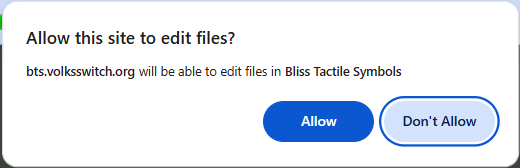
Click the “Allow” button.
- You could do all your designing directly via a tab in your browser. If you bookmark the tab you won’t even need to go back to the original web page again. BUT, you can shed the browser user interface and launch the designer just like you would any other application – from an icon on your desktop or on your taskbar. Let’s do that. Look for an icon at the end of your browser’s address bar. It should look something like this:
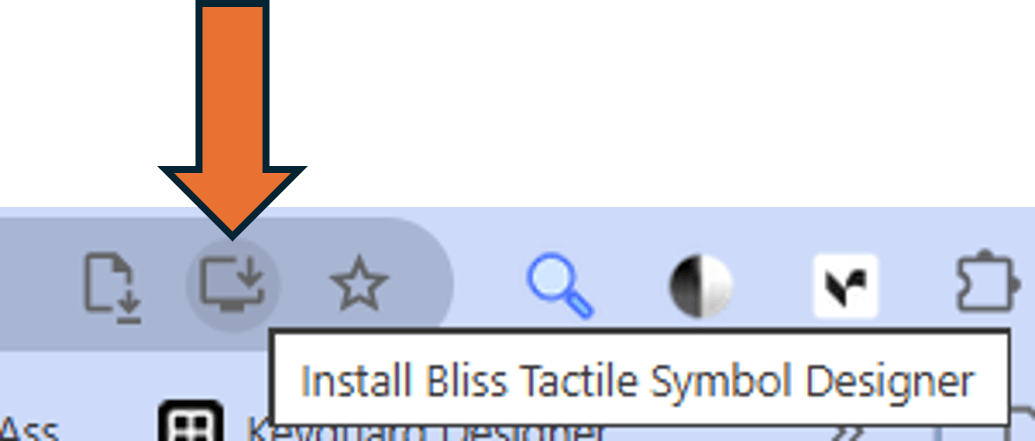
Click on the button and you’ll be asked to confirm your action:
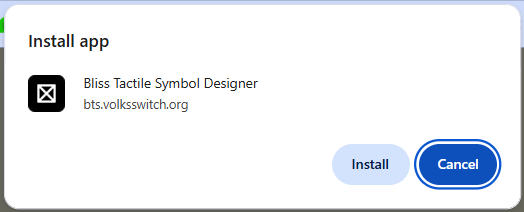
Click on “Install”. The designer will open in its own window:
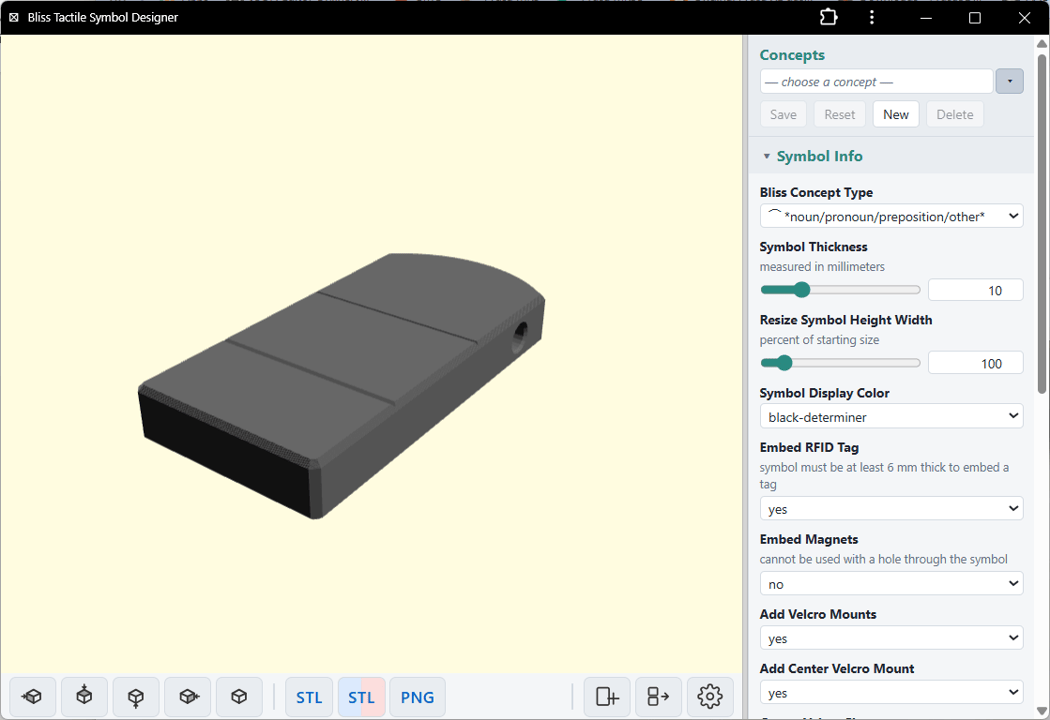
- If you minimize the app you’ll see that you have a new icon on your desktop:

It’s supposed to look like the “all” Blissymbol. You can now launch the symbol designer directly from your desktop without first launching your browser.
Note that the designer is still running from inside your browser, you just can’t see it.
You’re ready to begin using the designer to create your own Bliss Tactile Symbols, but as long as you’re here, download the Bliss Tiles and Puzzles designer by following, basically, the same process…
- Go back to the Bliss 3D-printing Tools page and click on the other button:

- Navigate to your Bliss Tactile Symbols folder (it’s used for both symbols and puzzles), give the app permission to access the folder, “install” the tab as an app, and look for the Bliss Tiles and Puzzles icon on your desktop

You’re ready to create Bliss Tiles and Puzzles. Go here to learn how.