
If you need to represent a concept and you can’t find it in the “Bliss SVG files” folder, the first thing you should do is go to the Bliss Communications International website and download their complete list of graphic symbols. We’d suggest that you download and expand the “bliss_svg.zip” file.
If you still can’t find what you need, you can assemble your own symbol instead. Notice the two buttons in the button bar located to the left of the Settings button:
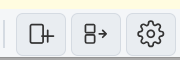
The button on the left is used to create a new graphic by adding two or more graphics together. The middle button is used to split a graphic into it’s component parts, which you can then save as independent files and use them to create a create a new graphic.
Creating a new concept
When you press the “Create a graphic button” it will open the “Create a graphic” window:
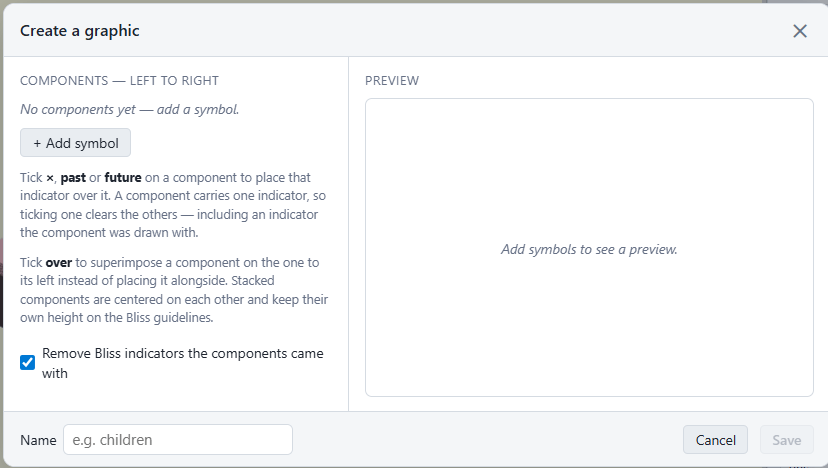
Press the “+ Add symbol” button and choose a Blissymbol SVG file from one of two folders that you’ve downloaded:

I will then appear in the “PREVIEW” pane. You may need to move the graphic files you need into one of these two folders first.
In this example we want to create the graphic for the concept “children” so we begin by adding the symbol for “child”:

To create the symbol for “children” we just need to add the “plural” indicator (an “x”) above the child symbol:

The graphic now looks like this:

Now give your new symbol a name:

and save your new graphic so it’s available to the designers.
Note where you save the new graphic to so that you can use it later.
Splitting a graphic